Day 2 — Cost Controls
Day 2 — Cost Controls When you launch infrastructure for a startup, cost control is not something you can “add later.” It needs to be built into the foundation...
Day 2 — Cost Controls
When you launch infrastructure for a startup, cost control is not something you can “add later.” It needs to be built into the foundation from day one. AWS works on a pay‑as‑you‑go model. This gives great flexibility, but also means that a small misconfiguration, a forgotten resource, or an unexpected traffic spike can easily turn into a serious bill.
If on Day 1 we focused on security (root user, IAM, MFA), then on Day 2 we make sure that AWS bills never become a surprise for you.
A rule of thumb: if you can’t monitor costs, you can’t manage them.
Why cost controls must be enabled from day one
AWS charges for resources based on actual usage. This is one of the main benefits of the cloud: you can scale quickly and pay only for what you really use. But if you don’t set limits and alerts, you effectively hand out a credit card with no limit and no SMS notifications.
Typical problems that lead to a sharp jump in the bill:
- Unremoved resources
For example, you created EC2 instances for a test and forgot to stop or delete them. - Configuration errors
Expensive instance types instead of cheap ones, extra regions, bloated data storage. - Misconfigured pipelines
Duplicate builds in CI/CD that waste compute resources. - Sudden traffic spikes
Sometimes a single error in the code or ad code is enough for traffic or compute load to multiply several times over.
To avoid such scenarios, you need to turn on three basic control mechanisms in AWS:
- Budgets and alerts on them
- Anomaly detection in costs
- Billing alerts (Billing Alarms)
How to set up an AWS budget
A budget is the simplest and most important tool for cost control in AWS. It allows you to set an expected limit and get notified when actual costs reach certain thresholds.
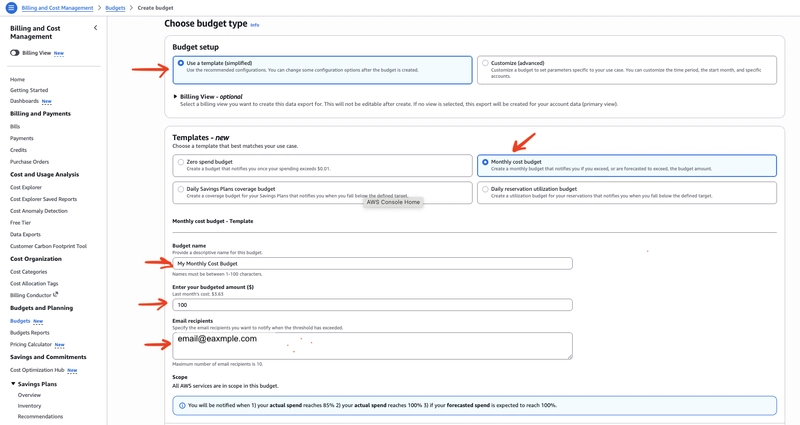
Step 1 — Going to the Budgets section
You’ll need the AWS console logged in as/simulated with an account that has permissions to view billing and budgeting.
- Go to the AWS console and open Services → Billing or use the search bar.
- In the left navigation pane, choose Budgets → Create budget.
For example, if you were writing a script to automate this, creating a budget would look like calling the create-budget API method. Example in Python:
import boto3

client = boto3.client('budgets')

budget = {
    'BudgetName': 'StartupMonthlyCostBudget',
    'BudgetLimit': {
        'Amount': '100',    # amount in US dollars
        'Unit': 'USD'
    },
    'TimeUnit': 'MONTHLY',  # monthly budget
    'BudgetType': 'COST'
}

response = client.create_budget(
    AccountId='123456789012',
    Budget=budget
)

print(response)
Important: for real-world usage, the script should be secured and not store account credentials in the code.
Step 2 — Budget configuration and period
When creating the budget in the console, select the following settings:
- Budget type:
Cost budget - Period:
Monthly
This means you are tracking actual monetary costs for the account (or selected filters) per month, and when you hit the configured limit, you will receive alerts.
Why a budget needs more than just “existing”: smart alerts
Creating a budget is only half the job. If it has no alerts configured, it becomes a “virtual piece of paper” that you might ignore completely.
A recommended approach is three alert levels:
- 60% of the budget → Email notification
A calm signal that current costs fit within the plan, but the month has already moved significantly forward. - 80% of the budget → Email + Push notification (e.g., via SNS)
A strong signal that you need to immediately review resources and usage patterns. - 100% of the budget → Critical alert
A proactive signal that you are likely to exceed the budget before the AWS bill actually arrives.
How to properly configure budget alerts
To go beyond the basic template and get more precise control points, it’s recommended to switch to the advanced budget configuration mode.
Step 1 — Switching to advanced budget configuration mode
- When creating the budget, select Customize (advanced).
- Enter the budget amount in the “Budget amount” field.
- Scroll down to the Alerts section and click Add an alert threshold.
This mode will allow you to precisely configure thresholds, notification types, and recipients.
Step 2 — Recommended alert configuration
In practice, the following three‑level alert scheme has proven effective:
-
50% of budget — early indicator
- Threshold:
50% - Type:
Actual cost - Notification:
Email
This is your first checkpoint. It lets you:
- Find unused or non‑idle resources early in the month.
- See cost increases due to configuration changes or higher load.
- Confirm there’s nothing broken in the infrastructure.
- Threshold:
-
80% of budget — strict indicator
- Threshold:
80% - Type:
Actual cost - Notification:
Email + SNS
This is where a real alarm signal kicks in. You should understand:
- What exactly has caused the cost increase?
- Can you turn off or downsize some resources?
- Do you need to further optimize code or configuration?
- Threshold:
-
100% of budget — critical indicator
- Threshold:
100% - Type:
Actual cost - Notification:
Email + SNS + Slackor any other critical alert cha
- Threshold:
el.
This level shows that:
- You are either reaching the budget limit,
- Or have already exceeded it (if the alert is based on actual costs).
Cost anomaly detection and billing alarms
In addition to explicit budgets and alerts, it’s useful to use:
- Cost Anomaly Detection
AWS analyzes your cost history and finds unexpected spikes that don’t fit the usual pattern. - Billing Alarms (CloudWatch Alarm)
This is an alert tied to the CloudWatch monitoring service and lets you flexibly combine billing alerts with other systems.
Example of a budget and anomaly detection in a real startup workflow
Imagine you are a startup with an expected monthly budget of $200. Based on that, you can set the following control structure:
Monthly budget: $200
- Alert at $100 (50%)
- Alert at $160 (80%)
- Alert at $200 (100%)
Additionally:
- Set up Cost Anomaly Detection to track unusual spikes.
- Co
ect your email to SNS‑topic notifications, and if necessary — Slack or other monitoring systems.
Practical tips for AWS cost control
- Agreement on roles and spending policy
Define who within the team is responsible for tracking the budget and create a clear rule:If we approach the 80% threshold, we trigger a mandatory resource audit and reduce resources if necessary.
- Regular resource audits:
- Check instances in unused regions.
- Turn off u
ecessary additional resources (e.g., extra disks or snapshot points).
- Use tagging for resources (
Environment,Project,Owner) and group costs by tags in budgets. - Use budget filters
When creating a budget, you can specify filters:- By service (e.g., monitor only EC2 or only Lambda).
- By tags or resource groups.
- Automation and scripts
To automatically stop/start instances depending on time of day, you can use, for example, Lambda functions or task scheduling systems.
Day 2 summary
- Create a budget of type
Cost budgetwith periodMonthly. - Configure three alert levels:
50%,80%,100%. - Use
Customize (advanced)to control thresholds and notifications precisely. - Enable cost anomaly detection and billing alerts.
- Turn resource audits and budgets into a regular practice, not a one‑time setup.
If you take time on a structured approach to AWS cost control from the very first day, you significantly reduce the risk of surprise bills and can scale more predictably, both technically and financially.