Capitol 52 Foundation
Text Centered Next to the Image Header ## Problem and Description On the Capitol 52 Foundation website, there is an issue with the layout of elements in the header....
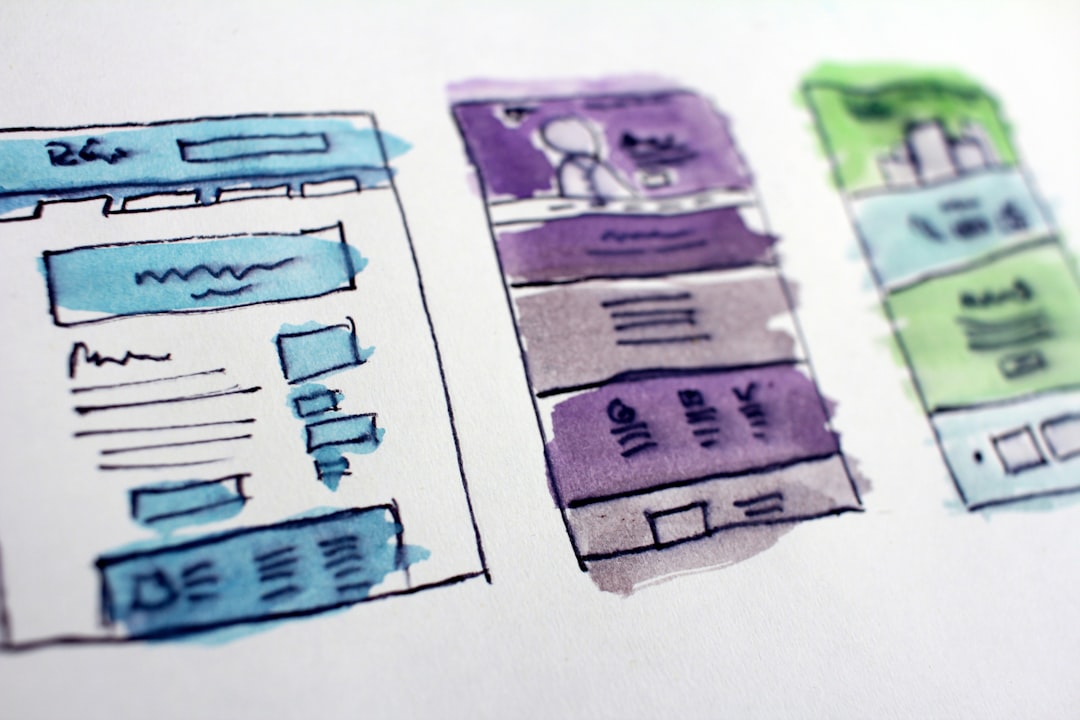



Text Centered Next to the Image Header
Problem and Description
On the Capitol 52 Foundation website, there is an issue with the layout of elements in the header. Visually, the image is displayed on the left, and the text underneath it. However, the requirement is to change the layout so that the text is positioned to the right of the image and centered on the page.
Analysis and Solution of the Problem
To solve this problem, it is necessary to modify the HTML code structure and add the required CSS styles for proper centering and placement of elements.
Modifying the HTML Code
Firstly, we need to change the HTML code to correctly position the image and text. We can use a `` with a class to create two columns: one for the image, and another for the text.
<header class="site-header">
    <div class="header-container m-4">
        <div class="image-text-container">
            <img src="https://api.andrey-dev.online/wp-content/uploads/2026/09/img-9c7954be-1788581424-1.jpg" alt="Logo" width="140" height="200" class="header-logo" />
            <div class="text-container">
                <h1>Capitol 52 Foundation</h1>
                <p>P.O. Box 75421 Vienna, VA 23236</p>
            </div>
        </div>
    </div>
</header>
Adding CSS Styles
To have the text to the right of the image and centered on the page, we need to add appropriate CSS styles.
.header-container {
    display: flex;
    justify-content: center;
    align-items: center;
}

.image-text-container {
    display: flex;
    align-items: center;
}

.header-logo {
    margin-right: 20px; /* Space between the image and text */
}

.text-container {
    text-align: right;
}
Practical Tips
- Using Flexbox: Flexbox is a powerful tool for managing the positioning and alignment of elements within a container.
- Spacing Between Elements: Use
marginto create space between the image and text. - Centering: Ensure that containers use the
justify-content: centerproperty to center elements horizontally.
Conclusion
Now, the elements in the website header are correctly positioned and centered. The image is displayed on the left, while the text is to its right, significantly improving the appearance and readability of the information.